Hard drive partitioning is useful for creating virtual drives and creating disk volumes that can be used for storing particular file types. For example, if you did not want to keep all of your media and documents on Drive (C:), you can create a hard drive partition that will be a new volume separate from (C:). Many users are already familiar with hard drive partitioning, but un-partitioning a hard drive is another issue that some may not be familiar with. In other words, if you have partitions and you want to remove them and merge them back into Drive (C:), how do you do that? This tutorial will take you through the steps of hard drive partitioning and then explain how to un-partition in the event that you need to gain space back on Drive (C:). This pertains only to Windows 7 and Vista, as other versions of Windows do not have a built-in utility for partitioning and require third party software for the task.
This demonstration is performed on Windows 7, but the instructions are the same for Vista. There are a few ways to open the Disk Management console. The easiest way is to go to the start menu search box and type “disk management”. At the top of the resulting list, you should see the Control Panel option clearly listed and highlighted.
Partition a hard drive
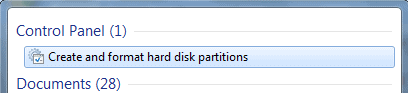
From here, press enter or click on “Create and format hard disk partitions”. This will open the Disk Management console. You will notice all drives displayed clearly. If you have never partitioned before, notice that there are already three partitions. This is normal for Windows and you never want to change these. The first is a recovery partition that is needed to recover the operating system if it becomes inaccessible. The second is called “System Reserved” and the third will be displayed as drive (C:). Essentially, these comprise the operating system except for the third which contains essential system files and free space.

To create a new partition, right-click the (C:) drive and the context menu will list the option to “Shrink Volume”.

Click “Shrink Volume” and this will open a small pop-up that indicates that the utility is querying the volume for available shrink space. Essentially, you will be “shrinking” a portion of the drive and it will become a separate partition. You can begin doing this when the following window appears:
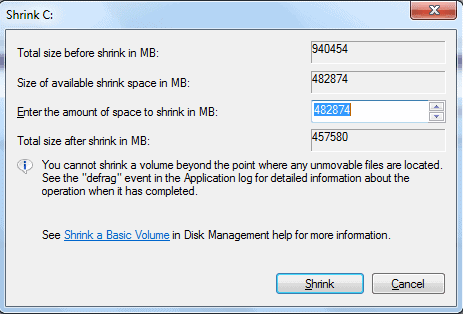
Specify the size for the new partition. In the highlighted blue field, you will see the full amount of space available to shrink next to “Enter the amount of space to shrink in MB”. Since you will be entering the size of the new partition (shrink) in MB, understand that 1GB is 1,024MB. If you want to create a new partition of 10GB, for example, you would enter 10,240. If you want to create a larger partition, you will need a calculator for odd sizes like 17GB or 183GB. In this case, we are going to create a 10GB partition.
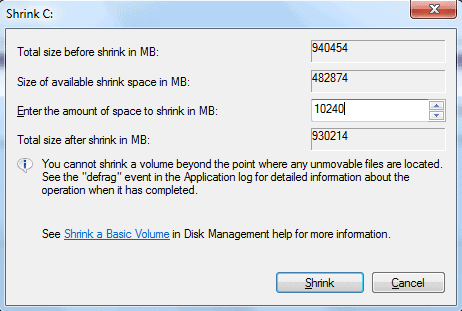
After entering the desired size for the partition, click Shrink and shortly a new unallocated partition will be created. This is unallocated space and is not yet usable. It needs to be formatted to create a healthy partition. Right click on the new partition and select “New Simple Volume” from the top of the context menu. This opens the New Simple Volume Wizard, which allows you to set up the formatting and Drive path with an assigned letter. When the Wizard opens, click Next and the consecutive window will ask you to specify the size of the drive again. As long as you want it to be the size you originally specified, there is no reason to change the size, so click Next.

Here you have the option to assign a drive letter and path. The default path will be the drive letter. Since this is a basic tutorial, the options of mounting to an empty NTFS folder or formatting to formats other than NTFS will not be explained. If this is the first partition you are creating, the default drive letter will be (E:). You may click the dropdown menu and select another letter if desired, but it is not necessary. Click Next and this will take you to the formatting options.

In this window, you can choose different file system types, specify a name for the partition and enable file and folder compression. To keep it simple, let the defaults remain as they are and click Next unless you would like to name the volume first. If you wish to name it, enter the desired name in the Volume label field and then click Next. The final window will open and all you have to do is click Finish and your new partition is formatted and ready to accept files or be used as a virtual drive.
You may do this for as many partitions as you may need. For example, when setting up a dual-boot, you may need to create up to three additional partitions for the second operating system to be installed. That is all up to you and it is a different subject entirely.
Un-Partitioning
Once you have gotten the procedure down for creating new partitions and you have used them, you may find at some point that you want to remove the partitions and merge the disk space back into drive (C:). In order to do this, you will need to open the Disk Management console again and choose the partition that you want to remove. Right click the partition and select Delete Volume from the context menu. This will erase all data on the partition, but that is fine because you want to have free space again.

You will see that the partition is now free space. The next step is to right click the free space volume and select Delete Partition from the menu. This will change it to unallocated space, which is the only way to merge this space back into (C:).
Now you are ready to add the unallocated space back into (C:), so right click on volume (C:) and select Extend Volume from the context menu. The Extend Volume Wizard will open and you basically go through similar steps as you did to create the partition as outlined in the beginning of this tutorial.
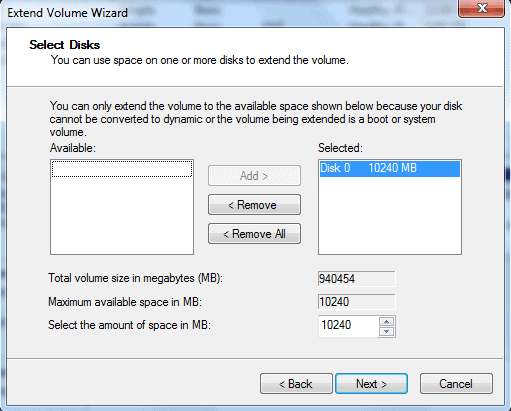
If you are only Extending from one partition, then continue to click Next through all of the prompts, clicking Finish at the end. This will remove the partition and you will no longer see it, as the memory has been put back onto Drive (C:).
Now you have successfully un-partitioned the drive and there is more memory available in Drive (C:). If you created multiple partitions and wanted to clear all of them, keep selecting Delete Volume and then Delete Partition for each one until you get a single unallocated space and follow the steps above to Extend Volume for Drive (C:).
The procedure is similar if you have multiple partitions and only want to delete a portion of them. For example, if you have four partitions like (E:), (M:), (L:), and (F:), you may want to delete just two. Let’s say that you want to delete (M:) and (F:). Perform the same steps as you would for single partitions. They will merge together as a single unallocated space. Then open the Extend Volume Wizard as described above. When the Wizard opens, select the unallocated space from the list of available disks and Add it to the remove list if it is not already there.
Regardless of how many partitions you are going to make or how many you want to delete and un-partition, the procedures are the same as detailed above. Just be careful to avoid deleting partitions that contain data you want to save. Backup your system before deleting multiple partitions. This will ensure that no data is lost if you do make the mistake of deleting the wrong partition(s).
You can always regain space on Drive (C:) using this method, thanks to the Disk Management Utility in Windows 7 and Vista. Usually, unless you have a higher capacity hard drive from 500GB – 3TB, you won’t be able to practically create many partitions at all. Removing multiple partitions will only be an issue for users with larger hard drives or users with smaller drives who have allocated too much space to partitions and are running out of space on Drive (C:).
If you are working with multiple virtual machines and dual boot systems, this information can be very useful. By learning all of these basic steps, you can easily progress to creating partitions with different formats such as FAT32 or ext2 and other formats used for different aspects of virtual machines and dual booted operating systems. This should give you the basic tools to master drive partitioning so that you can create any configuration you want. Once again, the customization beauty of Windows 7 and Vista shines through.
 Enjoyed the article?: Then sign-up for our free newsletter or RSS feed to kick off your day with the latest technology news and tips, or share the article with your friends and contacts on Facebook, Twitter or Google+ using the icons below.


 Renesas Electronics launched a SuperSpeed USB (USB 3.0) hub controller system-on-chip (SoC), the μPD720210, for use in hubs that enable connection of multiple devices supporting the USB 3.0 standard, such as PC peripherals and digital TVs.